Test Agent
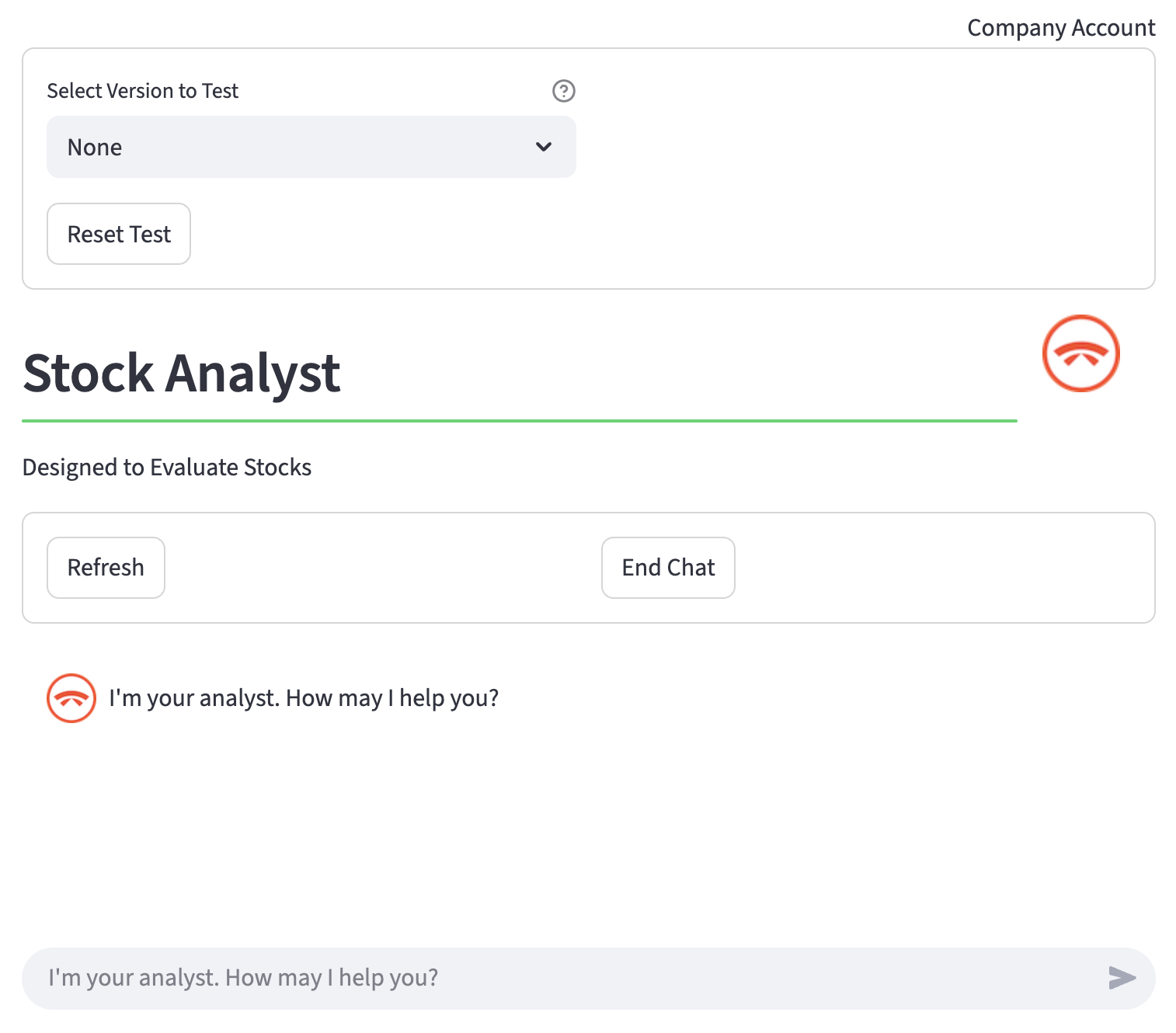
The Test Agent page provides a sophisticated, interactive staging environment for testing and debugging your AI agents. It serves as your primary tool for verifying that the conversational flows, intents, prompts, scripts, rules, and APIs you have configured work seamlessly before deploying them to production.
Using the Test Agent, you can test configurations directly from the PinionAI platform or load localized, compiled .AIA agent files.
Loading and Aggregating Agents
The Test Agent supports loading agents in two ways: via the Pinion Platform API, or directly from an uploaded .AIA file or shortcut. It also introduces powerful capabilities to merge and aggregate multiple agent profiles into a single active session for complex multi-agent flow testing.
1. Option A: Pinion Platform API (Cloud Loading)
- Select Version to Test: Dropdown list to choose which environment context of the selected agent to load:
None(Default / Draft): Tests the agent's current, unpublished configuration. Use this to test your iterative updates instantly as you build.draft,development,test,live,archived: Choose a locked, published snapshot of your configuration.- Load API Agent: Clears any active session history and loads a fresh instance of the selected agent version.
- Add to Current Session (Merge): Merges the selected agent version's intents, variables, and capabilities into your currently active test session. This lets you chain and combine different versions or modular agents together on the fly.
2. Option B: Pinion File or Shortcut (AIA Loading)
- Upload AIA agent file or shortcut: Drag-and-drop or select a
.AIAfile from your local disk. - Load AIA Agent: Clears current history and runs the compiled agent package locally in the studio. If the agent file is private and encrypted, you will be prompted to enter its Secret Key to decrypt and initialize the runner.
- Add AIA Agent (Merge): Injects the variables, models, and actions packaged inside the uploaded
.AIAfile directly into your active chat context. If the imported agent requires a secret key for decryption, an inline form will appear to input the merge secret before applying.
Multimodal Voice & Audio Testing (STT & TTS)
The Test Agent page features native hands-free voice-to-voice testing. If your agent is configured with speech variables, the interface adapts automatically to process raw audio.
Speech-to-Text (STT) Input
When the agent configuration contains the sttAudio flag enabled:
* The standard text input bar transforms to accept audio inputs.
* Click the built-in microphone icon to record your speech directly in the browser.
* Once recorded, a Processing audio... spinner is shown while the agent transcribes the recording into text, sending the transcribed query to the model.
Text-to-Speech (TTS) Output
When the agent configuration contains the ttsAudio flag enabled:
* Upon generating a text response, the Test Agent triggers a Generating audio... synthesis state.
* The generated audio stream is played back in real time through an embedded audio player with autoplay enabled.
* Both primary responses and chained intermediate responses (triggered via next_intent) support independent audio synthesis.
Chat Modes & Simulation
The Test Agent supports two primary modes of conversation depending on your configured flow:
1. AI Agent Mode (Default)
In this mode, you interact directly with the generative AI model. The system evaluates intents, updates variables, runs scripts/rules, and returns responses. It also supports chained intent execution, where an initial response immediately fires a secondary next_intent workflow without requiring subsequent user input.
2. Live Agent Transfer Mode
To verify customer handoff workflows, the Test Agent simulates transfers to human agents in real time:
- When a flow triggers a live agent transfer, the Test Agent establishes a bidirectional gRPC stream connection (ChatServiceStub) to the backend.
- A status notice appears stating: "Transfer to live agent initiated... Waiting for agent to connect."
- Submitting subsequent messages in this mode bypasses the AI model, routing them directly into the live support queue.
- To test the complete loop, open the Live Agent / User Agent page in another browser window to "Accept" and reply to the chat. Those replies stream back into your Test Agent chat window automatically.
Debugging & Session Tools
A suite of tools is available to inspect the agent's internal cognitive state during the conversation:
- Refresh: Reloads the interface and polls the database or gRPC server for any delayed message updates.
- End Chat: Gracefully terminates the active session, destroying the active chat history and closing any open gRPC live streams.
- Check Variables (Secure Debugging):
- Clicking Check Variables opens a modal overlay displaying the agent's current state variables in a structured JSON tree.
- Security Redaction: To prevent sensitive credentials (e.g., API keys, system tokens, or private customer parameters) from leaking in the staging UI, the dialog queries account-level redaction rules (
list_redact_variables) and automatically masks sensitive fields before rendering the JSON.