Variables
The Variables page in the admin interface allows for the creation, management, and configuration of variables. These variables are used throughout the AI agent system to store data, control flow, and personalize interactions.
- The
account Selectionis used to filter variables by account. - The
agent Selectionfilters variables to show only those associated with the currently selected agent.
Using Variables
Variables can be used to store, retrieve, and manipulate data within your agent's interactions. They can be referenced/embedded in prompts, intents, APIs, scripts, and more.
Variable Usage
- General Variables: Use
{{var.<variable-name>}}to reference any created variable. - Example:
Hello {{var.first_name}}, how can I help you? - User Input: Use
{{user_input}}to directly insert the user's latest message. - Conditional Logic: You can use simple if-else logic within prompts to create dynamic responses based on variable values.
- Example:
{% if var.allergy %} Allergies: {{ var.allergy }} {% endif %} - Example2:
{% if var.allergy -%} Allergies: {{ var.allergy }} {% endif -%}NOTE: The - in {%- or -%} removes extra whitespaces and newlines if the condition is false. - Special System Variables: The system provides several read-only variables with context about the conversation these include:
{{var.sessionDateTime}}- The current date and time of the session.{{var.intentNameList}}- List of all possible intent names.{{var.intentNameAndDescriptionList}}- List of all intent names and their descriptions.{{var.noInputIntentNameList}}- List of all intent names that are not input types. Good for 'what do you do type questions'.{{var.noInputIntentNameAndDescriptionList}}- List of all intent names that are not input types along with their descriptions.{{var.inputIntentNameList}}- List of input type intent names.{{var.inputIntentNameAndDescriptionList}}- List of all input intent names and their descriptions.{{var.intent_resp}}- The currently classified intent.{{var.expectedInput}}- If an input is requested by an intent, this field will populate, otherwise empty. This can be a useful 'hint' for the LLM during intent classification.
Setting Variables via Agent URL / QR Code Parameters
Variables can be dynamically initialized or overridden at session startup by including query parameters in the agent's URL. This is particularly powerful for physical or context-specific deployments using custom agent URL QR codes:
- Restaurant Table-Specific Agent QR Code: Generate a table QR code linking to
https://agent.example.com/chat?table=12so the agent immediately initializes withvar.tableset to12. - Car / Vehicle-Specific Agent QR Code: Place a window sticker QR code linking to
https://agent.example.com/chat?vin=956743241111so the agent immediately initializes withvar.vinset to956743241111. - Multiple Context Parameters: Chain multiple variables in the query string, e.g.,
?email=alan@pinionai.com&table=12&vin=956743241111.
Key Behavior & Rules:
- Only Existing Variables: URL parameters only update variables that are already defined in the agent's configuration. If a parameter in the URL does not match an existing variable name, it is ignored and will not create an arbitrary new variable.
- Automatic Type Conversion: Values passed in the URL are automatically converted to match the variable's defined data type (e.g., '12' becomes integer 12 for an integer variable type; 'true'/'false' become boolean True/False).
- Template Integration: Because variables are set during session initialization, they are immediately available in agentStart greetings and Jinja templates (e.g. "Welcome to Table {{ table }}!" or "Looking up history for vehicle VIN {{ vin }}...").
- Optional: URL parameters are completely optional. If none are provided, the agent uses its configured default starting values without breaking existing functionality.
Permissions
Access to the Variables page and its functionalities is generally controlled by user permissions. Users with owner, admin, editor, or variables permissions can typically manage variables.
Adding a New Variable
To create a new variable:
- Navigate to the Variables page.
- Ensure an account is selected, as variables are associated with an account.
- Expand the "New Variable" section.
- A form will appear with the following fields:
- Variable Name: A unique name for the variable (cannot contain spaces).
- Starting Value: The initial value for the variable.
- Status: A toggle to set the variable as active (default) or inactive.
- Show to Live Agent: A toggle to determine if this variable and its value should be visible to a live agent in their interface (default: False).
- Refresh at Input Request: A toggle (default: False). If true, the variable will be re-asked and reset whenever an input is requested that might populate this variable.
- Redact: A toggle (default: False). If true, the variable's value will be removed from logs and outputs and replace with ***.
- Agent(s): A multi-select field to associate this variable with one or more AI Agents.
- Variable Type: A dropdown to select the data type of the variable (e.g., "string", "integer", "float", "boolean", "list", "dictionary", "json").
- Variable Scope: A dropdown to define where the variable is primarily used or relevant (e.g., "session", "intent", "prompt", "global", "api", "script").
- Global variables are immutable and hidden from direct output in some contexts.
- Intent variables are often used for user input classification.
- Session variables can store data fields for the duration of a user's session.
- Other scopes help organize variables for specific components like prompts, APIs, or scripts.
- Click the "Create Variable" button. The system checks if the variable name contains spaces before saving.
Listing Variables
Existing variables for the currently selected account and agent are displayed in a list:
- Filter by Variable Scope: A dropdown allows filtering variables by their scope (e.g., "session", "intent").
- Each variable is shown in an expandable section.
- The display includes the variable name, scope, status (active/inactive), and associated agents.
- Expanding a variable's section reveals:
- Starting Value: Displayed as "****" for "global" scope variables for security.
- Type
- Scope
- Show to Live Agent status
- Refresh on Input Request status
- Each variable entry has "Edit" and "Delete" buttons.
Editing an Existing Variable
To modify an existing variable:
- Click the "Edit" button next to the desired variable in the list.
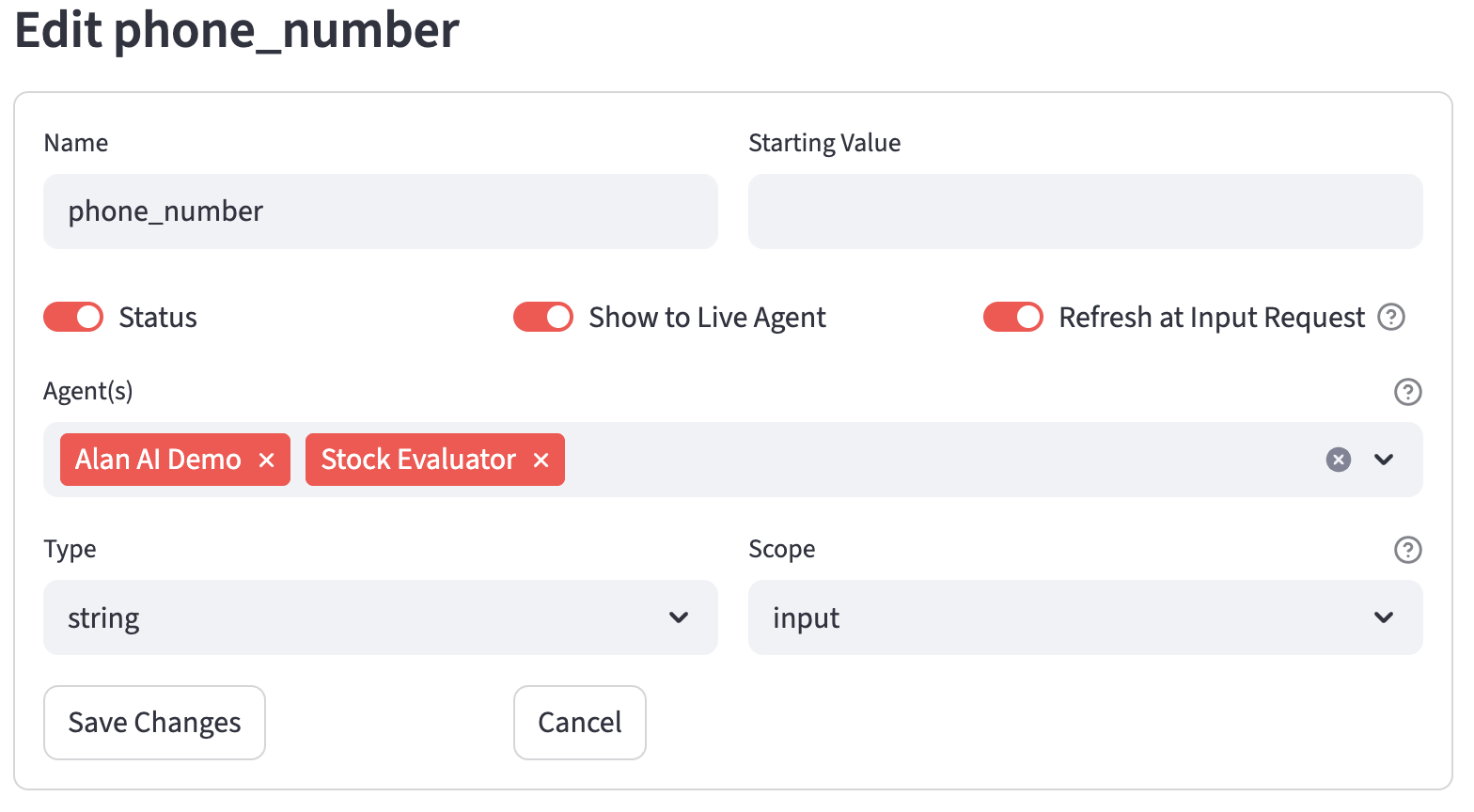
- The "Edit Variable" form will appear, pre-filled with the variable's current information.
- The following fields can be modified:
- Variable Name (cannot contain spaces)
- Starting Value (masked as a password field if scope is "global")
- Status
- Show to Live Agent
- Refresh at Input Request
- Agent(s)
- Variable Type
- Variable Scope
- Buttons available within the edit form:
- Save Changes: Saves the modifications to the database.
- Cancel: Discards changes and closes the edit form.
Deleting a Variable
To delete a variable:
- Click the "Delete" button next to the desired variable in the list.
- The system will attempt to remove the variable record from the database.
- A success or error message will be displayed.
Associating Agents with Variables (Add Agent to Variable)
If an agent is selected, an additional form appears:
- "Available Variables for [Selected Agent Name] Agent:": A dropdown lists variables from the current account that are not yet associated with the selected agent.
- Clicking "Include Variable" will add the selected agent to the
variable_agentsarray of the chosen variable, effectively linking them.
Advanced Variable Usage
LOOPS: You can use the following to handle variables and loops within text using the {% for ... in ... %} and {% endfor %} tags.
1. Basic List Loop
If you have a list of ingredients in your var dictionary:
context_vars
In your Prompt:
Output:
2. Dictionary (Key/Value) Loop
If you want to list out all the specific dietary details provided:
3. The Special loop Object
A "magic" loop variable exists inside the block to help with formatting. This is incredibly useful for things like adding commas between items but not at the end.
| Property | Description |
|---|---|
| loop.index | Current iteration (starts at 1) |
| loop.first | True if first item |
| loop.last | True if last item |
| loop.length | Total number of items |
Example: Creating a comma-separated list
If sides is ['Rice', 'Salad'], it outputs: Serve with: Rice, Salad
4. Handling Empty Lists (The else block)
You can include an else inside a loop that only triggers if the list is empty or doesn't exist.
Quick Tip: Whitespace Control
In prompts, extra newlines can mess up the AI's response. Always use the hyphen ({%- or -%}) to strip the blank line the tag would otherwise leave behind.
Filters: Filters are applied using the pipe symbol (|). They allow you to transform data directly inside your prompt without having to write extra code to clean it up beforehand.
1. Common Formatting Filters
These are great for ensuring the AI sees consistently formatted text, regardless of how the user typed it.
- capitalize: Capitalizes the first character.
- upper / lower: Changes the entire string case.
- title: Capitalizes every word (Title Case).
- trim: Removes leading/trailing whitespace.
Example in a prompt:
2. Handling Lists with join
Instead of writing a full for loop to create a comma-separated list, you can use the join filter. This is much cleaner for simple lists.
In your code: context_vars = {"ingredients": ["garlic", "onions", "thyme"]}
In your prompt:
Output: Ingredients: garlic, onions, thyme
3. Safety and Defaults
If a variable might be missing or None, you can use the default filter to provide a fallback value so the prompt doesn't look broken.
Special Requests: {{ user_input | default('None provided') }}
Complexity: {{ var.level | default('Beginner') }}
4. Logic-Based Filters
You can combine filters with if statements to handle more complex scenarios:
- length: Check how many items are in a list.
- first / last: Get specific items.
{% if var.steps | length > 10 -%}
This is a complex recipe with {{ var.steps | length }} steps.
{% endif %}
5. Chaining Filters
You can stack multiple filters together to perform several transformations at once.