Forms
Creating Forms with PinionAI FormBuilder
Forms are used to collect and validate user input data. Use the PinionAI FormBuilder application to easily create and configure your forms.
PinionAI FormBuilder: PinionAI FormBuilder
How to Create a Form:
- Open FormBuilder: Click the "FormBuilder" button above the Form Configuration field to open the visual form editor
- Design Your Form: Use the FormBuilder's visual interface or AI assistant to:
- Add form fields (text, email, number, dropdown, etc.)
- Set field labels, placeholders, and validation rules
- Configure form styling, colors, and messaging
- Add required fields and conditional logic
- Export Configuration: Once your form is complete, copy or export the JSON configuration
- Copy to Form Configuration: Paste the exported JSON into the "Form Configuration (JSON)" field
- Reponse Variable: Select a Response Variable. This will be a unique URL for the form url link to be returned into this variable.
- Submit: Form fields will be automatically extracted from your JSON configuration
Key FormBuilder Features:
- Visual Editor: Click-to-Add interface to design forms without coding
- AI Assistant: Get help from AI to create the appropriate form structure
- Validation Rules: Set up email, required field, and custom validations
- Styling Options: Customize colors, logos, and form appearance
- Export/Import: Easily export your form as JSON for use in PinionAI Studio > Forms
FormBuilder Tips:
- Always ensure each field in your JSON has a unique
nameproperty - to auto populate a field, thisnameproperty needs to match a PinionAI variable name. - Use FormBuilder's visual editor for complex forms with styling and validation
- The AI assistant can help you structure forms that match your requirements
- You can edit forms anytime by updating the JSON in FormBuilder and exporting again
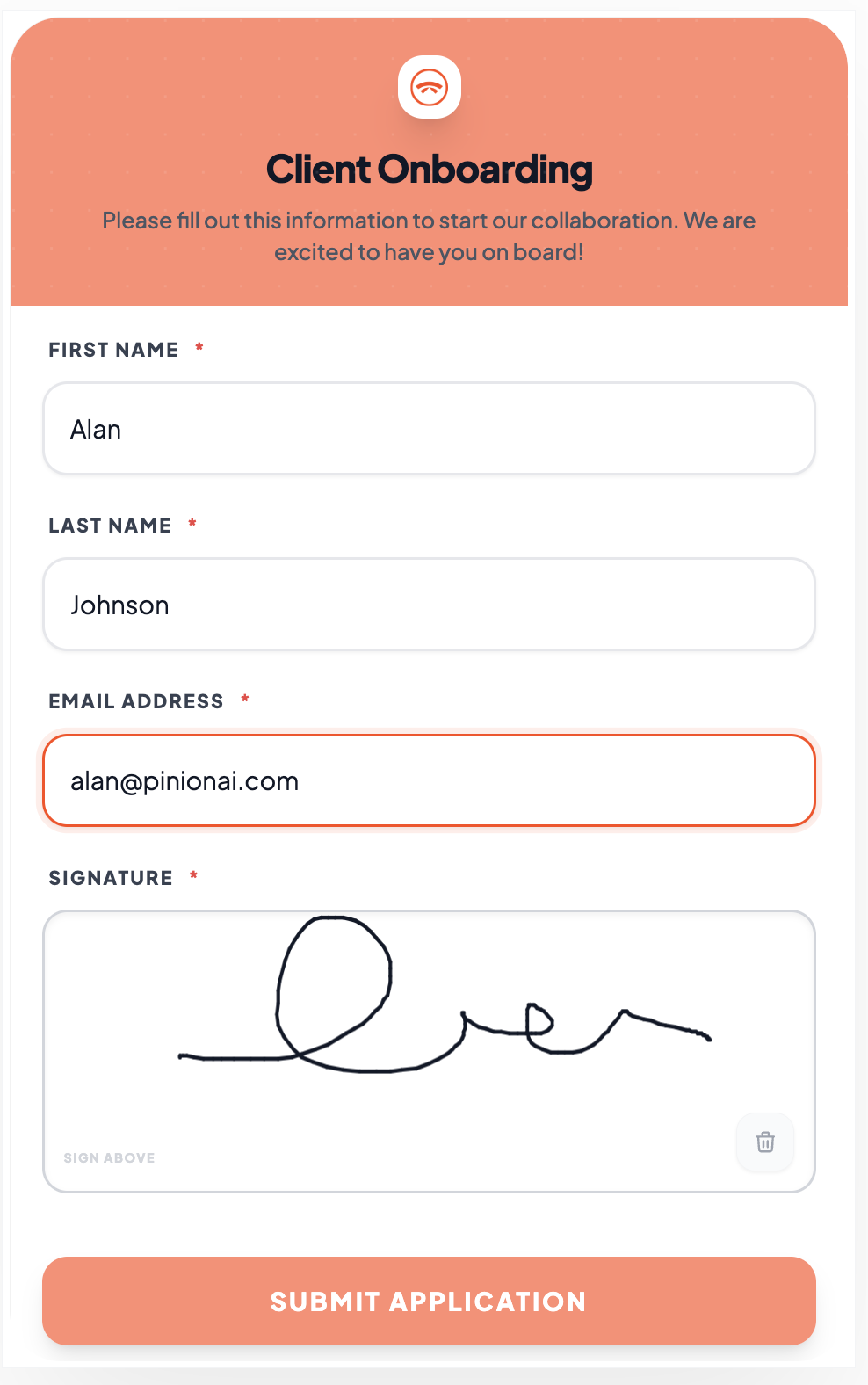
Workflow Summary:
- Click the FormBuilder button to open the visual editor
- Design your form with all the fields and validation you need
- Use the AI Assistant in FormBuilder to help structure your form if needed
- Export the configuration as JSON from FormBuilder
- Copy and paste the JSON into the Form Configuration field below
- Click "Create Form" or "Save Changes"
- Done! Form fields are automatically extracted from your configuration